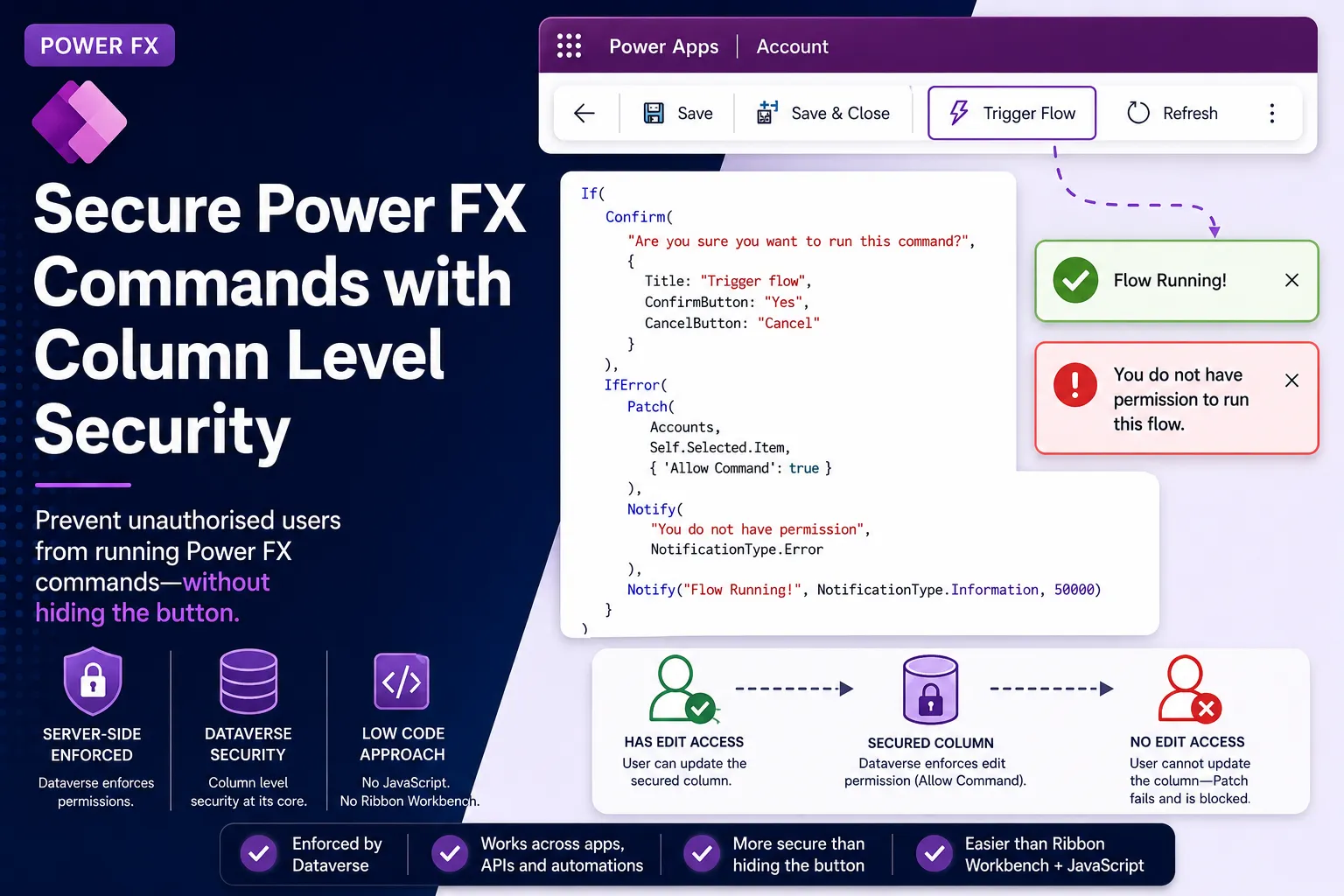
Dynamics 365 Power FX Commands: Security Restrictions
If you have ever used Power FX ribbon commands you will know that they are far easier to customise than the legacy buttons using Ribbon Workbench, and that they are very powerful. You will also know that there are some things which cannot be achieved with the modern ribbon commands.
One of these things is role based access to the buttons. In Ribbon Workbench you could show or hide a ribbon command based on a user’s roles or Teams — it involves quite a bit of code and can be tricky to get right, but it is possible. In modern commanding it simply isn’t an option: Microsoft’s own limitations page confirms that not all classic visibility rules are supported in Power Fx, and there is no built-in way to key visibility off a security role.
I ran into this on a project where the requirement was to hide a command which already existed, had been built in Power FX, and needed to be off-limits to certain Teams in the organisation.
I either had to recreate the button in Ribbon Workbench using complex JavaScript, or figure out a way of preventing users who should not have access from running it.
I could not prevent users from seeing the command, but I did figure out a low-code approach to preventing them from running the logic.
Step 1: Create a column and secure it
Create a column and enable it for column level security. I used a Yes/No column, as the button will set it to true and it can be reset once the command has fully completed.
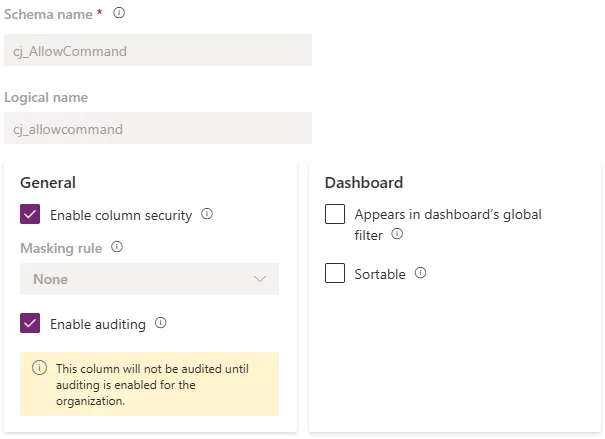
Step 2: Set up the column security profiles
Create a column security profile and give the Team or users you want the button to be usable for edit access to the column. You will also need a profile granting create and read access to the other users of the system.
Generally, if you are already using column level security, you will have a catch-all profile handling create and read access for the basic user role (or equivalent).

Step 3: Wrap the command in an IfError
In your command, the first action needs to be an IfError which attempts to update the column to true. If the user doesn’t have write access, the Patch fails and the error is caught by a Notify telling them they don’t have permission:
If(
    Confirm(
        "Are you sure you want to run this command?",
        {
            Title: "Trigger flow",
            ConfirmButton: "Yes",
            CancelButton: "Cancel"
        }
    ),
    IfError(
        Patch(
            Accounts,
            Self.Selected.Item,
            { 'Allow Command': true }
        ),
        Notify(
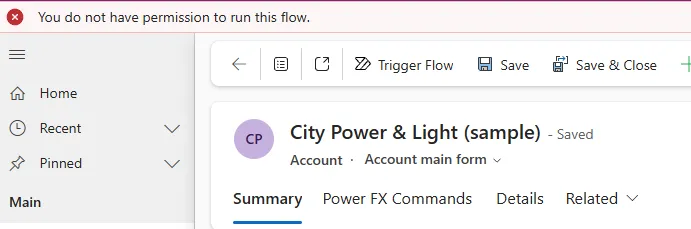
            "You do not have permission to run this flow.",
            NotificationType.Error
        ),
        Notify("Flow Running!", NotificationType.Information, 50000)
    )
)
The three arguments to IfError are doing the work here. The first is the value to test — the Patch. The second is the replacement, which runs only if the Patch errors. The third is the optional DefaultResult, which runs only when there was no error at all. That is what gives you a clean success path and a clean failure path from a single function.
In my example, when this column changes to Yes it triggers a flow. If you need to perform any additional logic in the Power FX command itself, you can chain further actions onto the success path with a semicolon:
If(
    Confirm(
        "Are you sure you want to run this command?",
        {
            Title: "Trigger flow",
            ConfirmButton: "Yes",
            CancelButton: "Cancel"
        }
    ),
    IfError(
        Patch(
            Accounts,
            Self.Selected.Item,
            { 'Allow Command': true }
        ),
        Notify(
            "You do not have permission to run this flow.",
            NotificationType.Error
        ),
        Notify("Flow Running!", NotificationType.Information, 50000);
        Patch(
            Accounts,
            Self.Selected.Item,
            { 'Last Run': Now() }
        )
    )
)
Each statement after the semicolon runs in sequence, so once the flow has been triggered you could log when it last ran, patch another column, or add any other actions your process needs.
What the user sees
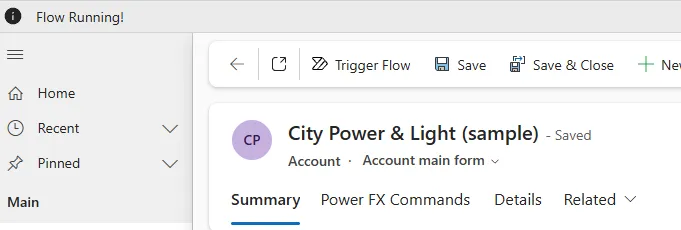
When a user with the correct permissions clicks the button, they see the confirmation dialog, and on confirming they get the “Flow Running!” notification:
The flow also ran successfully:
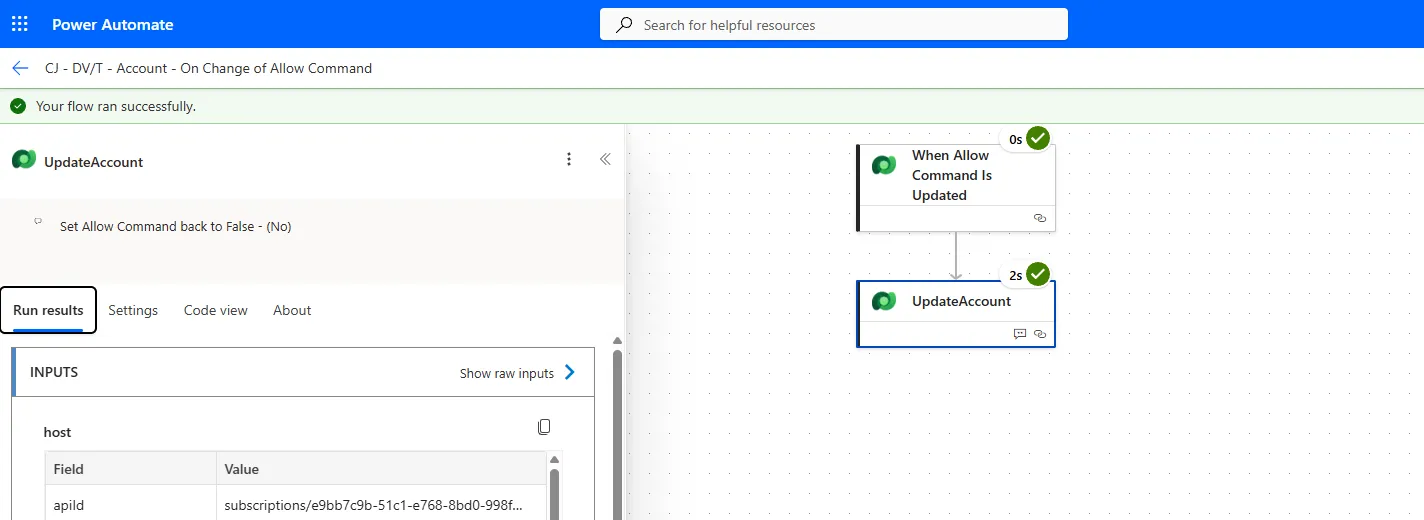
The flow itself is simple — it sets Allow Command back to No. That reset is worth doing either in an automation triggered from the command, or in the command itself once the permissions have been confirmed, so the column is ready for the next run.
When a user who does not have permission clicks the button, they get this instead:
Why this is better than it looks
The obvious objection is that the button is still visible, which feels less tidy than hiding it outright. But hiding a button was never a security control in the first place — it’s UI, and it’s trivially bypassed by anyone who knows their way around the platform.
Column level security is enforced by Dataverse on the server. A user without edit access to that column cannot set it to true from the command, from a canvas app, from the API, or from anywhere else. So while this approach is less pretty than hiding the button, it is genuinely more secure than the thing it’s replacing and it’s a great deal easier than diving into Ribbon Workbench and wrestling with JavaScript.